
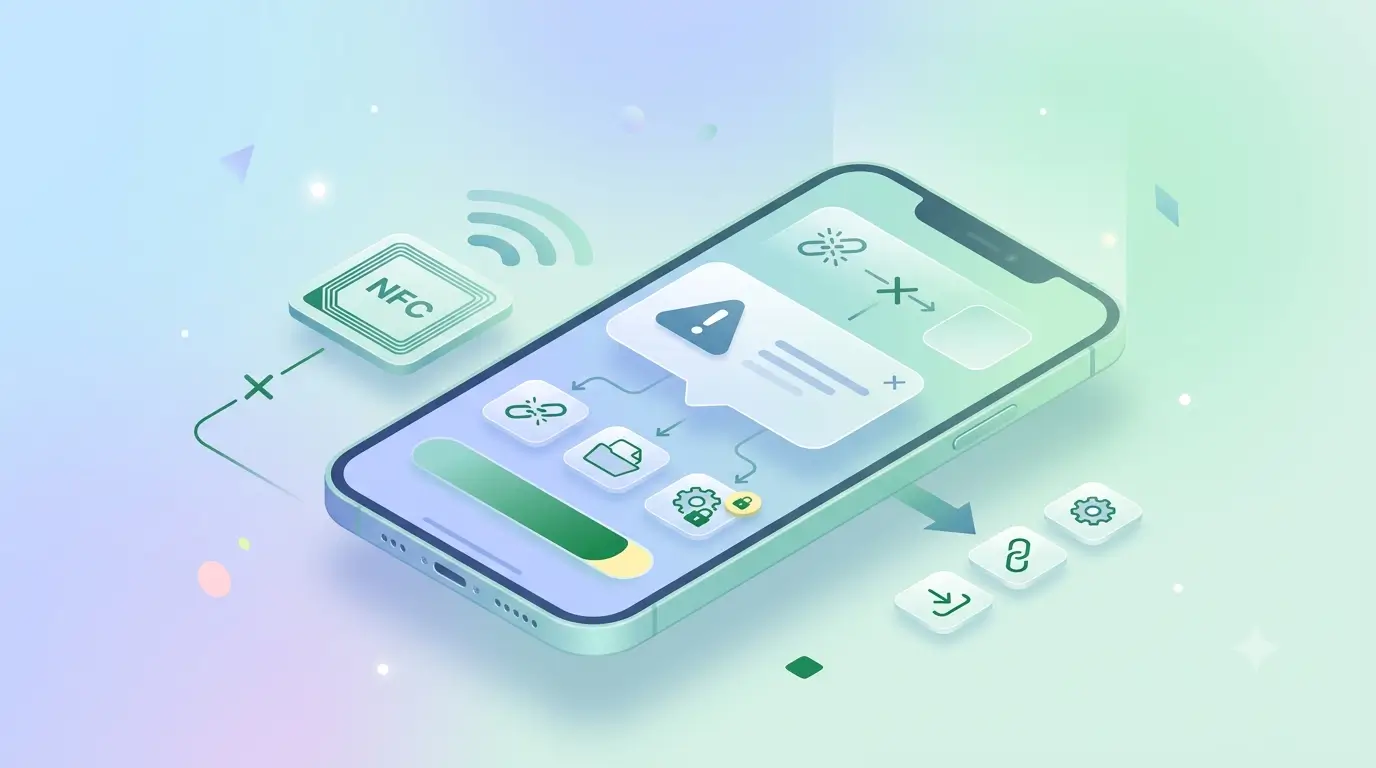
If your phone shows "No supported app for this NFC tag", the tag is fine and your NFC is working. The message means your phone read the chip successfully but found nothing it knows how to open, usually because the tag is blank, or because it holds a data type your phone has no default app for. Almost none of these cases means the tag is broken. Many people type it as "no support app for this NFC tag" when they search; the wording varies by handset, and the cause and the fix are the same.
The short version
- The read succeeded; the handover failed. The chip is alive.
- Four causes: blank tag, plain-text record, record for an app you do not have, interrupted write.
- The fix for three of them is the same: write a URL record. Only a locked bad tag needs replacing.
- A ProfileTap card ships pre-linked, so if you see this on one, the card has not been assigned to your profile yet.
Before you start
It is one of the more alarming messages Android shows, because it sounds like a missing download. Nothing is missing. An NFC tag stores a record, and the record has a type. A URL record tells the phone to open a browser, a contact record tells it to open contacts, and a plain-text record tells it nothing useful; there is no default app for raw text, so Android reports that no supported app exists. That record is all a tag holds. An NFC card works the same way, storing a link that opens your details; if you want the phone side explained from the beginning, start with what NFC means in mobile phones. If your problem is closer to "NFC tag not reading", with no message at all, skip to the section on dead tags.
What you need
- The tag, out of any wallet or sleeve.
- A free NFC reader and writer app from the Play Store or App Store, for inspecting and rewriting the record.
- The URL you want the tag to open. For a ProfileTap card, that is your profile link from the dashboard.
The four common causes
| Cause | How to recognise it | Fix |
|---|---|---|
| The tag is blank | A new tag straight from a supplier; a reader app shows it empty | Write a URL record. This is the most common cause and not a fault |
| The tag holds plain text | Written with a generic writer app; the reader shows a Text record | Rewrite it as a URL record; the behaviour changes immediately |
| The record points to an app you do not have | The reader shows an app-specific or external record type | Install that app, or rewrite the tag as a URL |
| The write was interrupted and the tag locked | The reader shows a partial record and reports the tag is read-only | Cannot be fixed; replace the tag |
Step 1: Confirm NFC is on, then tap again
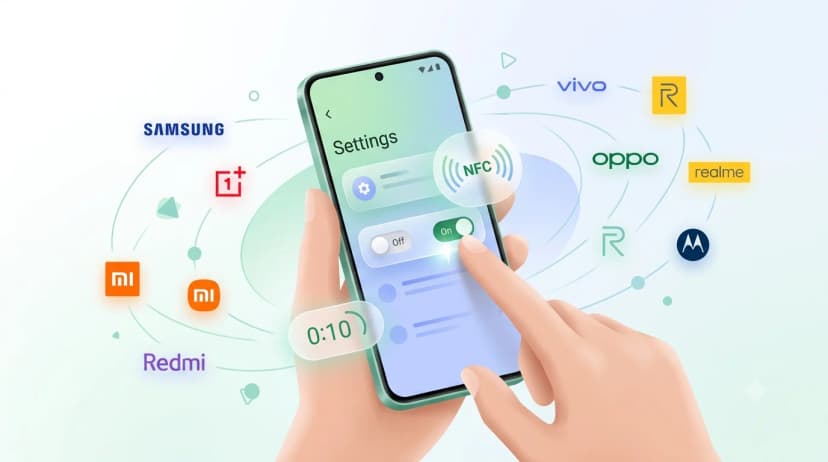
Seeing the message means NFC is already on, but if a second tap gives silence the toggle is the first suspect. Our guide to enabling NFC on Android has the path for each brand. Tap once more with the tag held still against the antenna for a full second.
Step 2: Read the tag with a reader app
Open the reader app, choose Read, and hold the tag to the phone. It will tell you whether the tag is empty, what record type it holds, how much memory is used, and whether it is locked. A Text record is the usual reason behind an "NFC tag not supported" result. That separates a blank tag from a badly written one in about five seconds, and it is the step that decides everything after it.
Step 3: Write a URL record
If the tag is blank or holds text, choose Write in the app, pick URL as the record type, paste the page you want to open, and hold the tag to the phone until it confirms. URL is the most universally supported record type across Android and iOS: it opens in the browser with nothing installed on either side. Tap the tag once more with the app closed to confirm the browser opens.
The step people get wrong
Ticking "lock tag" on the first write. Locking is one-way by design; it is what stops a stranger overwriting your card in your pocket. Write, test on two phones, and only then lock, if you lock at all.
Step 4: Check whether the tag is locked
If the write fails, the reader app will usually say the tag is read-only. A tag locked with a complete, correct URL is fine and needs nothing. A tag locked mid-write, with an incomplete record, is readable but useless and cannot be rewritten; it needs replacing. There is no software workaround.
Is it different on iPhone?
iPhones handle this more quietly. An unrecognised tag usually produces no reaction at all, with no error shown, which people read as the tag being dead. iOS only surfaces a notification for record types it can act on, chiefly URLs. If a tag works on Android but does nothing on an iPhone, the record type is the first thing to check. Which iPhones and Android phones read tags in the background is covered in phones with NFC in India.
Why this is faster than the alternatives
| Approach | Time | Tells you the cause? | Risk |
|---|---|---|---|
| Read with an app, then write a URL | Under five minutes | Yes, the reader names the record type | None |
| Rewrite blindly without reading first | Two minutes | No | Writes over a tag that was locked or fine, or locks it by accident |
| Order a replacement tag | Days | No; a blank replacement shows the same message | Money spent on a tag that was never broken |
| Search forums for the exact message | An evening | Partial, and often wrong for your record type | Advice to install apps you do not need |
Rewrite or replace
Where a URL rewrite fixes it
- The reader shows an empty tag
- The reader shows a Text or other non-URL record
- The tag works on Android but is silent on iPhone
- It is a new ProfileTap card that has not been assigned to a profile yet
Where the tag must be replaced
- The reader app reports the tag as read-only with a partial or wrong record
- The tag gives no reaction at all on any phone (a dead chip, which is a different problem from this message)
- The tag was written for a specific app you need to keep using and cannot be a plain URL
Common mistakes
Three ways this message turns into a wasted afternoon
- Searching the Play Store for an app called "NFC tag support". No such app is missing. The phone is asking for a URL record on the tag.
- Binning the tag. The message is proof the chip works.
- Writing a shortened or redirecting link. Some phones warn on redirects; write the final URL.
When a tag is dead
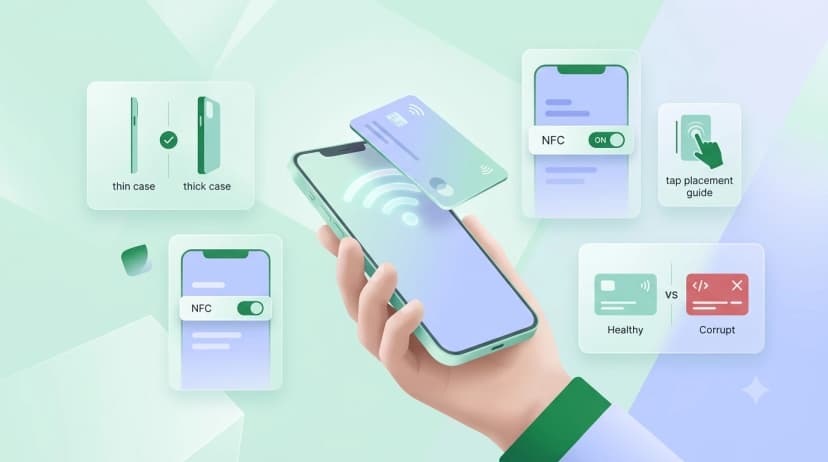
A dead tag produces nothing: no message, no vibration, no reaction on any phone at any tap position. If you are seeing the no supported app message, the chip is alive and readable, which rules out physical damage. Antennas are usually killed by a sharp fold, a hole punched through the card, or sustained heat. Our NFC card troubleshooting checklist covers the physical side, including the tap-position and phone-case checks for a tag that is not reading at all.
You're done
A tag that opens a URL in the browser is finished; test it on one Android and one iPhone and you will not see the message again. If the tag you tapped was a business card, what an NFC card is and how the everyday tap works picks up from here, and the NFC cards collection shows what a pre-linked card looks like. An NFC business card from ProfileTap arrives already set up to open in the browser.